
Deploy AstrBot on BT Panel
BT Panel is a secure, efficient, and production-ready Linux/Windows server operation panel.
AstrBot has been published to BT Panel's Docker App Store, supporting one-click installation.
Install BT Panel
If you haven't installed BT Panel yet, please refer to Install BT Products for one-click installation.
Set Acceleration URL (For Users in Mainland China)
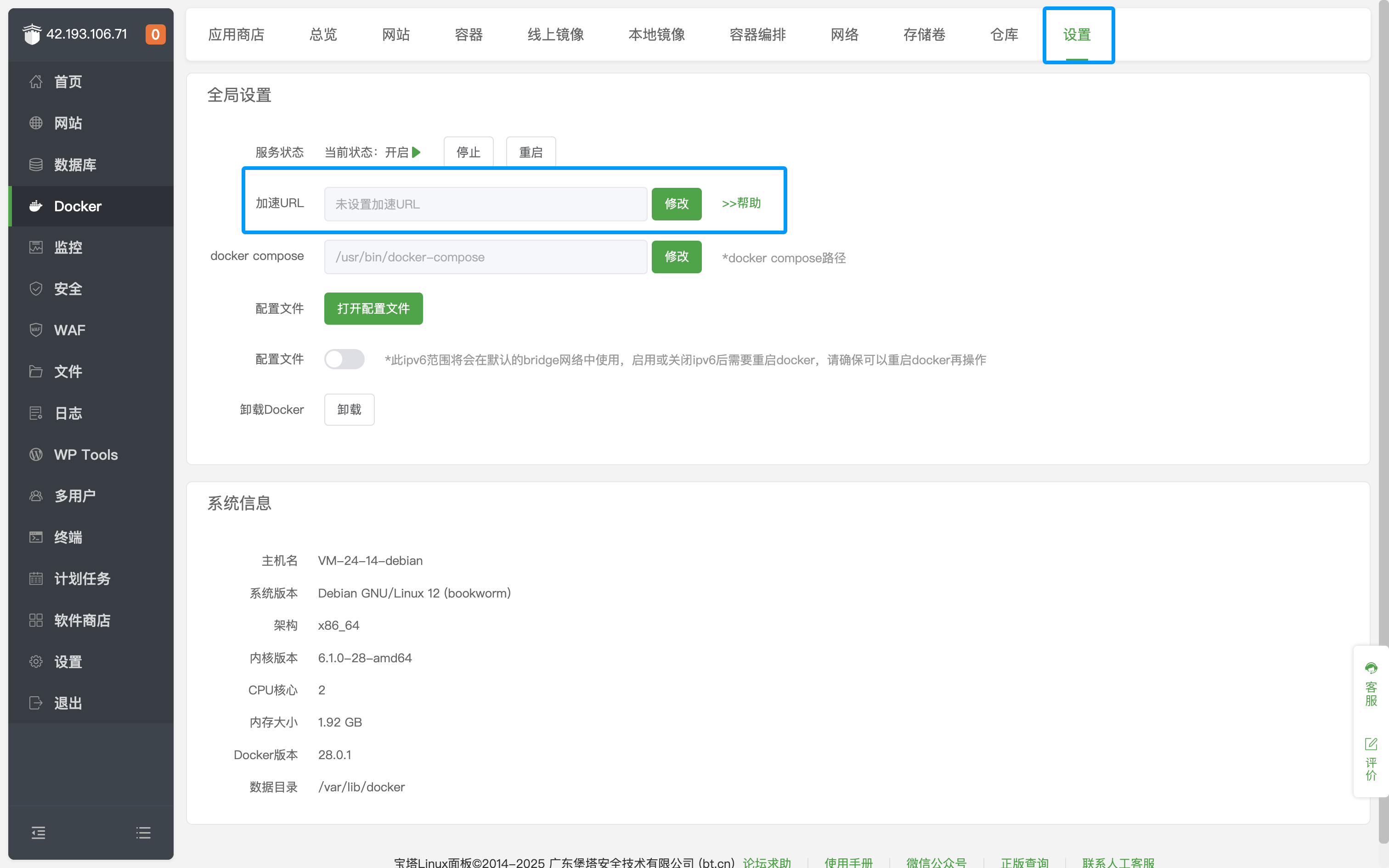
After entering the BT Panel page, click Docker on the left sidebar, click Settings, and modify the Acceleration URL.
Install AstrBot
Go to Docker's App Store and search for AstrBot, as shown below.
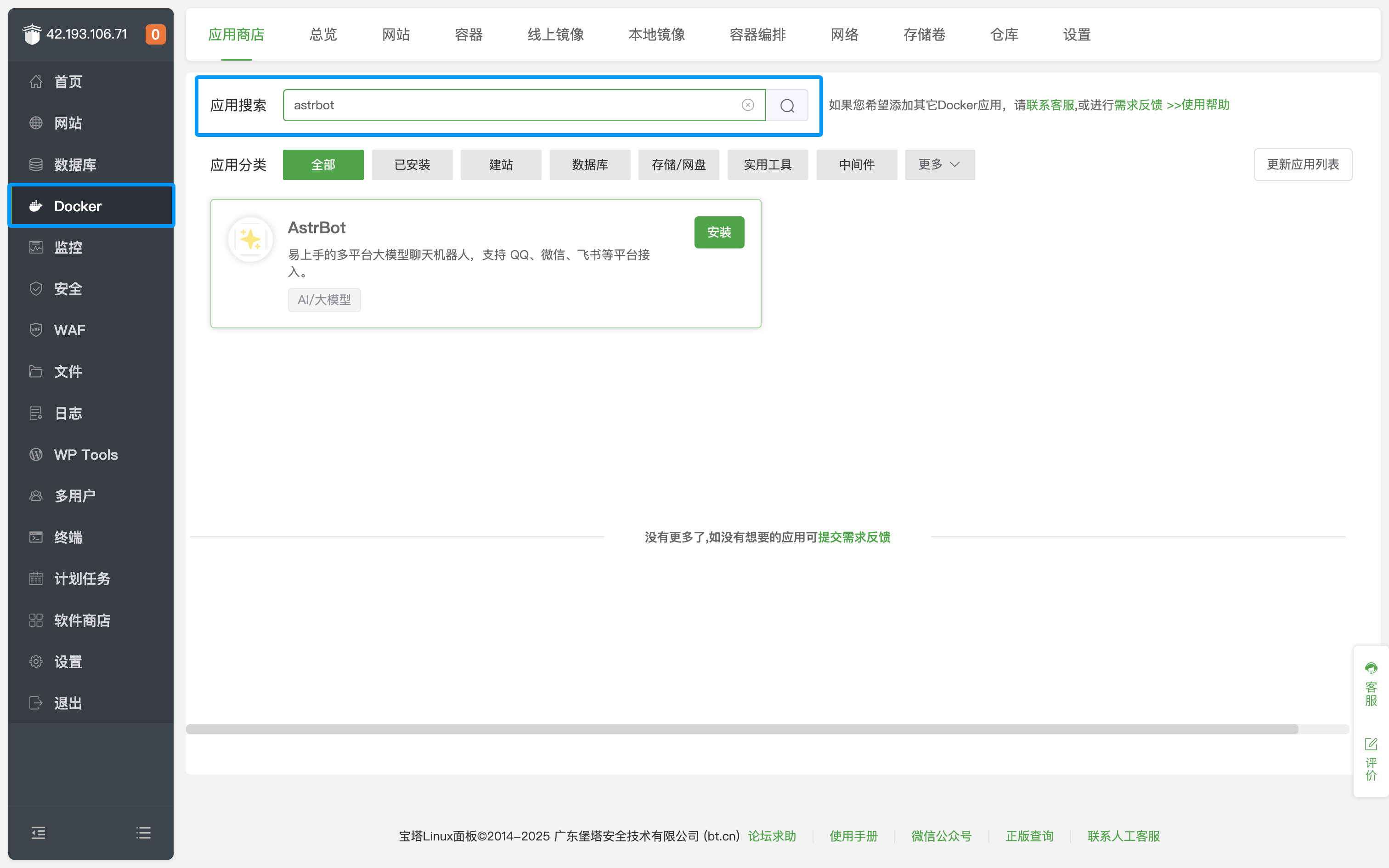
Click Install and wait for the installation to complete.
After successful installation, click Security on the left sidebar and open the corresponding AstrBot port (default is 6185).
If you are using cloud servers from providers like AWS, Alibaba Cloud, Tencent Cloud, etc., make sure their security groups also allow the corresponding port.
Access AstrBot
Visit http://IP:6185 to access the AstrBot dashboard.
TIP
By default, the above method only opens port 6185. If you need to deploy messaging platforms, you need to additionally open the corresponding ports. Click Container in the top bar, find the AstrBot container, click Manage, click Edit Container, and add the corresponding ports.
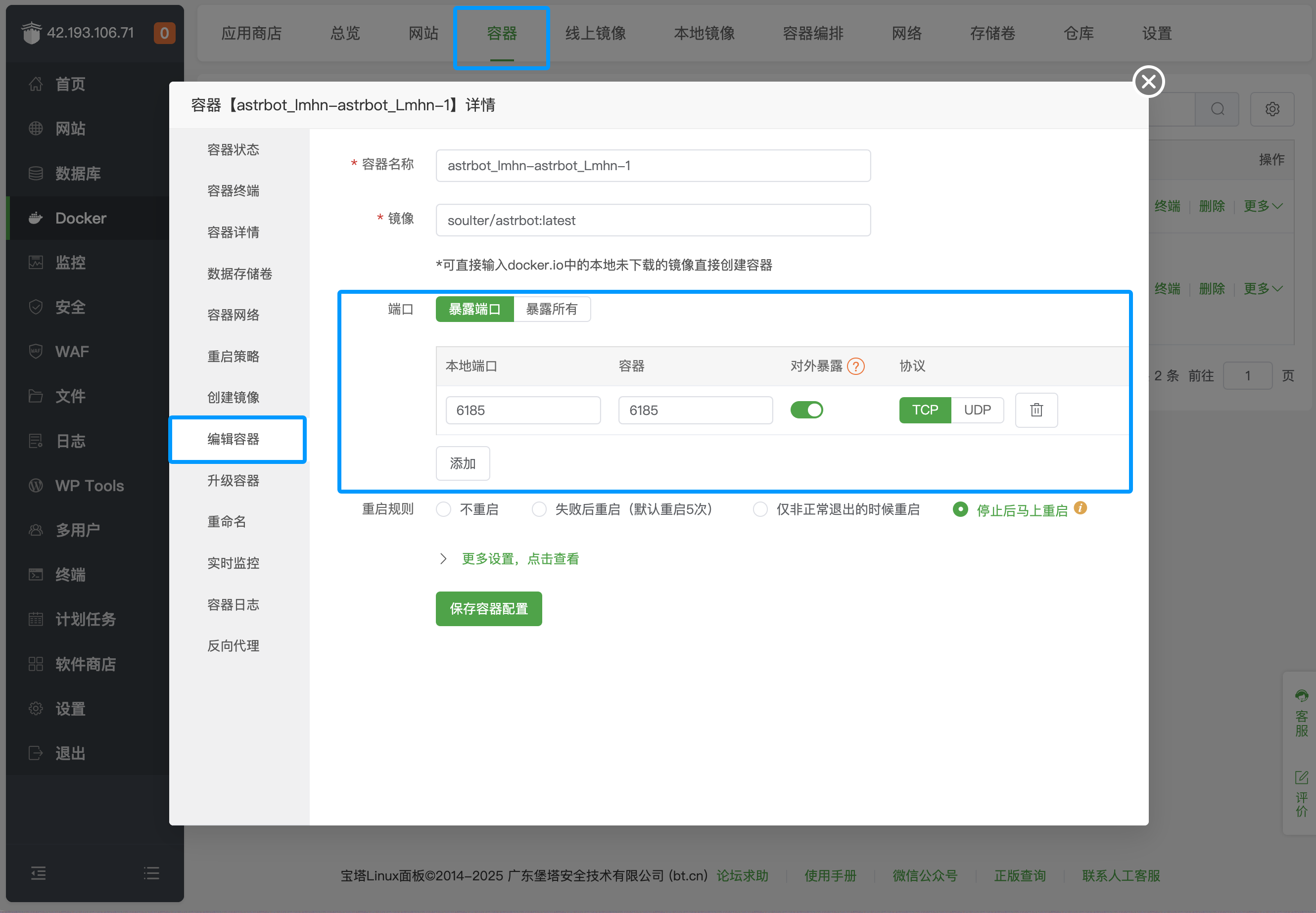
For specific messaging platform port mappings, refer to the table below:
| Port | Description | Type |
|---|---|---|
| 6185 | AstrBot WebUI default port | Required |
| 6195 | WeCom default port | Optional |
| 6199 | QQ Personal Account(aiocqhttp) default port | Optional |
| 6196 | QQ Official API(Webhook) default port | Optional |
Platforms not listed do not require additional port opening.